
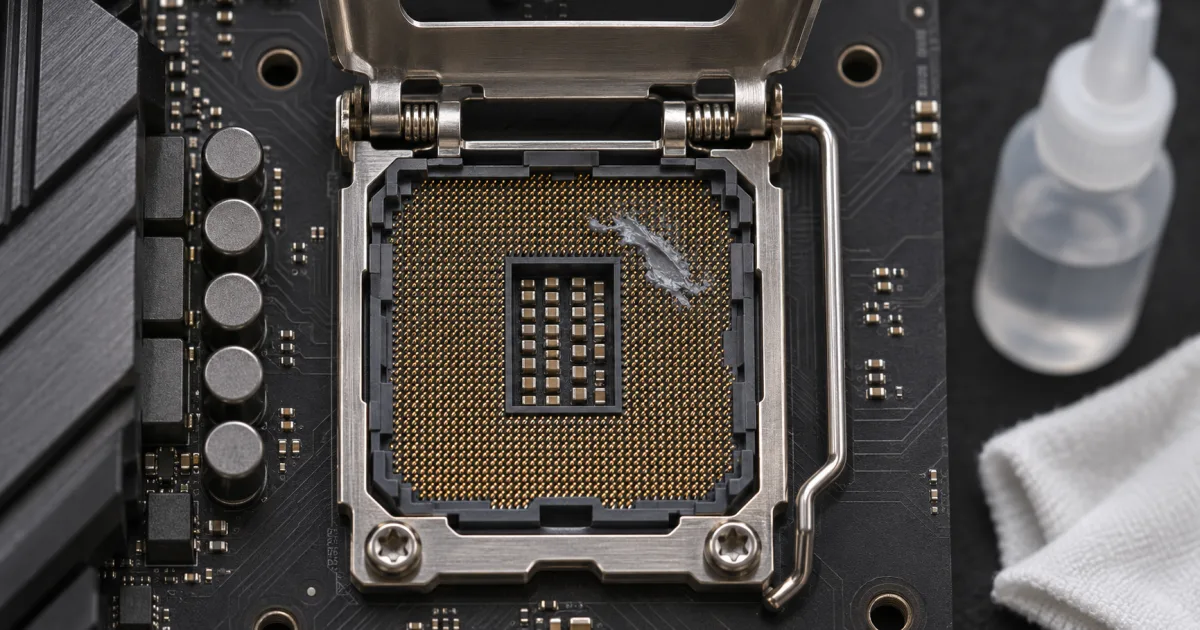

Got thermal paste in your CPU socket? Don’t panic, and don’t power the PC on yet. Most standard thermal pastes do not conduct electricity, so a small smear will not short anything out. The real risk is paste sitting between the pins and contact pads, where it can block contact and cause boot failures or instability. Clumsy cleaning is the other risk, because it can bend pins. The good news: thermal paste in CPU socket pins is a common accident during a cooler swap, and it is almost always fixable.
This guide shows how to tell how serious your situation is. It covers how to clean thermal paste out of an AM4 (PGA) socket and an Intel or AM5 (LGA) socket, what to do differently with liquid metal or silver-based paste, and how to check everything works afterwards.
Table of Contents
Is Thermal Paste in CPU Socket Pins a Problem?
It depends on two things: what kind of paste it is, and where it ended up.
- Standard ceramic or silicone pastes (Arctic MX-4/MX-6, Noctua NT-H1/NT-H2, Thermal Grizzly Kryonaut and most stock-cooler paste) are electrically non-conductive. They won’t create a short circuit, even if a blob lands on the pins.
- The real problem is insulation. A CPU makes contact through hundreds or thousands of tiny pins and pads. Paste trapped between a pin and its pad stops that contact. You might see no display, a PC that won’t POST, missing RAM, random crashes, or one memory channel not being detected.
- Location matters. Paste on the socket frame, the retention bracket or the edge of the CPU substrate is harmless and easy to wipe off. Paste inside the pin area, or on the gold pads on the underside of the CPU, needs more care.
- Liquid metal is different. It is electrically conductive and can short components. If any liquid metal reached the socket or motherboard, do not power on until it is completely removed.
Small smears of non-conductive paste often cause no symptoms at all. Large lumps, dried paste, and anything conductive are the cases to deal with properly. If you’re shopping for a replacement, our guide to the best thermal paste for your CPU covers safe, non-conductive options.
Step 1: Identify Your Socket Type and Paste Type
Cleaning methods depend on where the pins are, so work this out first.
PGA sockets: AMD AM4 and older AMD
On a PGA (Pin Grid Array) system, the pins are on the CPU and the motherboard socket is a block of small holes. Paste in the socket holes is fairly forgiving. The pins on the CPU, however, bend easily, so handle the CPU only by its edges.
LGA sockets: Intel and AMD AM5
On an LGA (Land Grid Array) system, the pins are in the motherboard socket and the CPU has flat gold pads underneath. LGA socket pins are tiny springy contacts, and they bend at the lightest touch. A bent LGA pin is much harder to fix than a bent PGA pin, so the rule here is: never rub, scrub or poke the socket pins.
Your paste type
- Non-conductive (most pastes): lowest risk.
- Silver-based (e.g. Arctic Silver 5): the maker describes it as non-conductive but slightly capacitive. Treat it with more caution and clean it out fully.
- Liquid metal (e.g. Thermal Grizzly Conductonaut): conductive. Full removal is required before you power on.
If you are not sure which paste was used, for example on a used PC or a cooler you didn’t build, treat it like silver-based paste and clean it thoroughly.
Step 2: Decide Whether to Clean It or Leave It
Cleaning is not always the safest option. Every pass with a brush or cloth over the pins is a chance to bend one. Use this decision guide:
| Situation | What to do |
|---|---|
| Paste on the socket frame, bracket or edge of the CPU substrate | Wipe it off with isopropyl alcohol on a lint-free cloth. Low risk. |
| A tiny smear of non-conductive paste on a few socket pins, and the PC works fine | Often safest to leave it. Cleaning LGA pins risks more than it fixes. |
| A visible lump or dried paste inside the pin area | Clean it carefully using the method for your socket below. |
| PC won’t POST, RAM is missing, or the system is unstable after the paste incident | Clean the socket and the CPU contacts, inspect for bent pins, then retest. |
| Any liquid metal in or near the socket | Do not power on. Remove it completely before doing anything else. |
| Silver-based or unknown paste inside the pin area | Clean it fully. |
What You Need Before You Start
- Isopropyl alcohol, 90% or higher (99% is ideal). Lower concentrations contain more water and dry slowly.
- Lint-free cloths or coffee filters. Tissue and cotton balls leave fibers behind.
- A soft, clean brush. A new soft toothbrush or an anti-static brush works for AM4 CPU pins.
- Cotton swabs, only for the socket frame and outer areas, never on LGA pins.
- Compressed air or an electric air blower.
- A bright flashlight and a magnifier, or your phone’s camera zoomed in.
Before cleaning, switch off the PC, unplug the power cable, and press the power button for a few seconds to drain leftover power. If you can, take the motherboard out of the case or lay the case flat so you can see the socket clearly.
How to Clean Thermal Paste Out of an AM4 (PGA) Socket
On AM4 you may have paste in two places: in the holes of the motherboard socket, or between the pins on the CPU itself. Deal with each separately.
Cleaning the motherboard socket (the holes)
- Open the socket lever and remove the CPU, holding it only by its edges.
- Wipe any paste off the top surface of the socket with a lint-free cloth slightly dampened with isopropyl alcohol.
- For paste sitting in the holes, add a few drops of alcohol to soften it, then use short bursts of compressed air to push it out. Hold the can upright so no liquid propellant sprays out.
- Repeat until the holes look clear under a flashlight.
Cleaning paste from the CPU pins
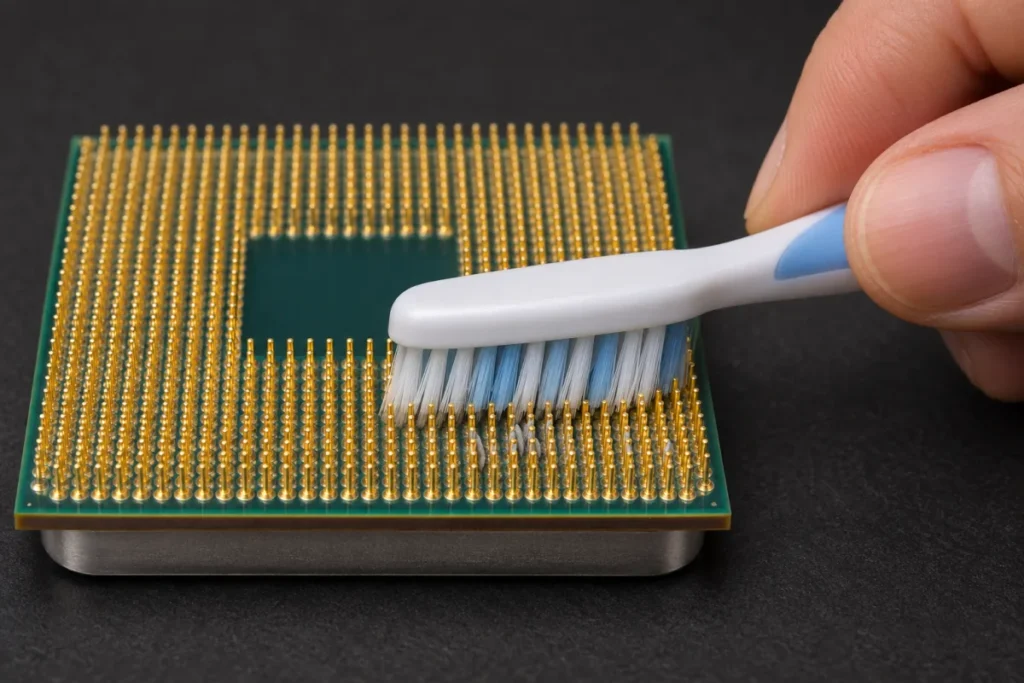
- Place the CPU pins-up on a clean, flat surface.
- Dip a soft toothbrush in isopropyl alcohol and shake off the excess.
- Brush gently along the rows of pins, in straight lines, never diagonally or in circles. Brushing across the rows is how pins get bent.
- Use very little pressure. Let the alcohol dissolve the paste rather than scrubbing it off.
- Blow out loosened paste with compressed air, then repeat until the pins look clean.
If a pin does bend slightly, it can often be straightened with a thin card or a mechanical pencil tip with the lead removed. Go slowly and line it up with the pins around it.
How to Clean Thermal Paste Out of an Intel or AM5 (LGA) Socket
LGA sockets need the gentlest approach of all. Your goal is to lift paste out without anything rubbing against the pins.
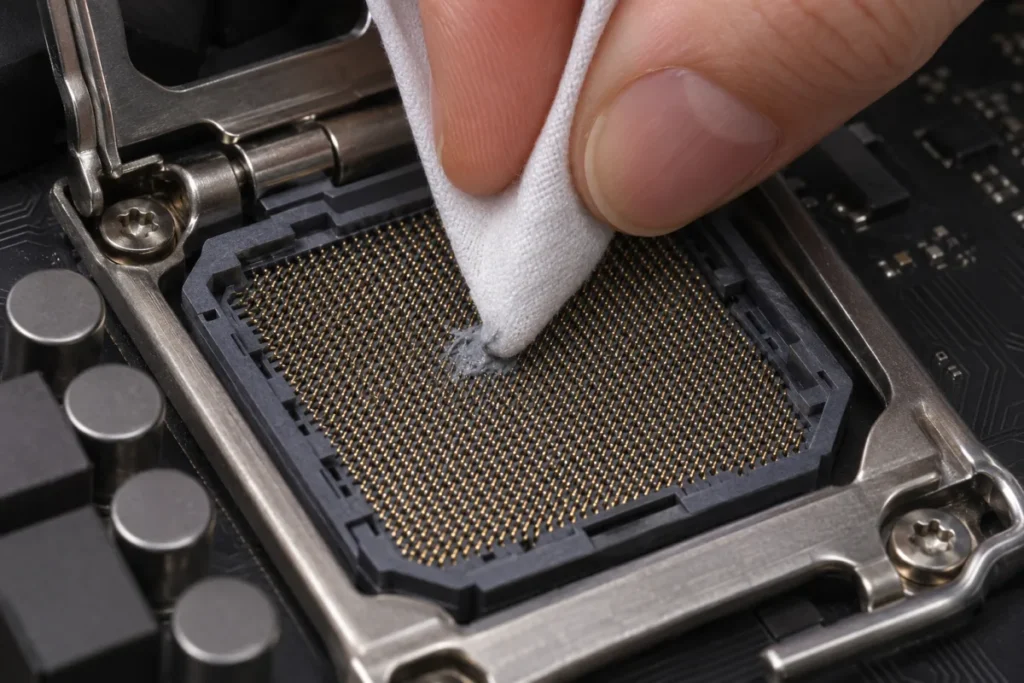
- Clean the CPU first. The underside of an LGA CPU is a grid of flat gold pads. Paste there is easy to remove: wipe it gently with a lint-free cloth and isopropyl alcohol. Often the paste is mostly on the CPU, not in the socket.
- Look at the socket under bright light. Decide whether the paste is actually on the pins or just on the frame around them.
- Clean the frame with a swab or cloth and alcohol, staying away from the pin field.
- For paste on the pins, dab instead of wiping. Soak a corner of a lint-free cloth or coffee filter in alcohol and lightly touch it onto the paste. Capillary action pulls the softened paste up into the cloth. Lift straight up. Never drag it sideways.
- Use compressed air in short bursts from a short distance to clear loose bits. Don’t blast at point-blank range.
- If paste remains stuck on a few pins, you can let a drop of alcohol sit on it and dab again. If it is only a trace of non-conductive paste, consider leaving it, as explained in Step 2.
Avoid toothbrushes, swabs and fingers on LGA pins. A single snagged cotton fiber can bend a pin, and LGA pins are hard to straighten without proper tools and a magnifier.
Special Cases: Liquid Metal and Silver-Based Paste
Liquid metal
Liquid metal is a gallium-based alloy that conducts electricity very well. If any of it touched the socket, pins, CPU substrate or motherboard components:
- Do not power on the PC until it is completely removed.
- Soak it up with lint-free cloth and isopropyl alcohol. Liquid metal forms beads, so work slowly and pick each bead up rather than pushing it around.
- Check carefully between pins and around tiny components near the socket with a magnifier.
- Keep liquid metal away from aluminum parts, because gallium reacts with aluminum.
If you can’t see clearly into the socket, or you are unsure whether you got it all, a repair shop is the safer option. A short circuit can kill the CPU, the motherboard, or both.
Silver-based paste
Silver-based compounds are generally sold as non-conductive, but because of their metal content they deserve more caution than ceramic pastes. Remove them fully from the pin area using the method for your socket type, and let everything dry before reassembling.
After Cleaning: Dry, Inspect and Test
- Let it dry. Isopropyl alcohol evaporates fast, but give it at least 15–30 minutes, and longer if alcohol pooled in the socket. Never power on while anything is still wet.
- Inspect for bent pins. Use a flashlight held at a low angle and look for pins that catch the light differently or break the pattern. Your phone camera zoomed in works well.
- Reseat the CPU. Line up the triangle marker on the CPU with the one on the socket, lower it straight down without sliding, and close the lever.
- Apply fresh paste and mount the cooler. Use the right amount this time; see our guide on how much thermal paste to apply.
- Test boot. Check that the PC POSTs and that the BIOS shows the full amount of installed RAM. Missing memory is a classic sign that a pin or contact still isn’t touching properly.
- Run a stability check. A 10–15 minute stress test (Cinebench, OCCT or Prime95) and a memory test will reveal any remaining contact problems. Watch temperatures while it runs.
If the PC still won’t POST or memory is missing, reseat the CPU once more and inspect again. Persistent problems after a clean socket usually point to a bent pin.
How to Prevent Thermal Paste in CPU Socket Accidents
- Use the right amount. Most paste-in-socket accidents start with too much paste squeezing out over the edges. A pea-sized dot is enough for most desktop CPUs.
- Warm up the PC before removing the cooler. Running it for 5–10 minutes softens the paste, so the cooler releases more easily.
- Twist before you lift. Gently rotate the cooler a few degrees left and right to break the paste’s grip, then lift straight up. Yanking the cooler can pull an AM4 CPU straight out of a locked socket and bend its pins.
- Clean old paste off the CPU while it is still in the socket, or hold it by the edges and set it pins- or pads-up on a clean, soft surface. Never wipe the top while the underside rests on a rough or dusty surface.
- Clean before reapplying. Always wipe old paste completely off the heat spreader and the cooler base before applying new paste.
- On AM5, mind the cut-outs. The AM5 heat spreader has notches around its edges where excess paste can collect. A modest dot avoids this, and some brands sell a paste guard that covers the notches (Noctua’s NT-H2 AM5 Edition includes one).
Stocking up for your next build or repaste? Our thermal paste range covers non-conductive compounds that are forgiving if a little ends up where it shouldn’t. Tidy PC case accessories also make working around the socket easier next time.
Frequently Asked Questions
Help, I got thermal paste in my CPU socket. What should I do first?
Leave the PC off and unplugged. Check which paste you used and which socket you have. With a small amount of standard non-conductive paste, you can usually either leave it or dab it out gently with 90%+ isopropyl alcohol. With liquid metal or silver-based paste, clean it out completely before reinstalling the CPU. Never touch LGA socket pins with fingers, brushes or swabs.
Can non-conductive thermal paste in the socket still cause problems?
Yes. It won’t short anything, but it can sit between a pin and its contact pad and stop them touching. That can cause boot failures, missing RAM or instability. Small smears often cause no symptoms, but lumps or dried paste on the pins should be cleaned out.
How do I clean thermal paste from an AM4 socket or CPU?
For the socket holes, soften the paste with isopropyl alcohol and blow it out with short bursts of compressed air. For the CPU pins, brush gently along the pin rows with a soft toothbrush dipped in alcohol, never diagonally, then blow out the loosened paste.
Can I use a toothbrush on an Intel or AM5 (LGA) socket?
No. LGA socket pins bend very easily. Dab paste up with an alcohol-soaked lint-free cloth and lift straight up, then use short bursts of compressed air. Cleaning the CPU’s flat gold pads with a cloth is fine.
Can I use a vacuum to remove thermal paste from the socket?
It’s better not to. A vacuum nozzle can bump the pins, it won’t pull out sticky paste, and some vacuums build up static. Isopropyl alcohol, a lint-free cloth and compressed air are safer.
How long should I wait after cleaning before turning the PC on?
At least 15–30 minutes for high-percentage isopropyl alcohol, and longer if a lot of alcohol got into the socket. The socket and CPU must be completely dry before you power on.
What does it mean to “moat” thermal paste?
In forum discussions, “moating” means building a barrier around the CPU die or heat spreader so paste, and especially liquid metal, can’t spread onto nearby components. People often use Kapton tape or a layer of non-conductive coating. It’s mainly used with liquid metal and direct-die setups. With standard paste, using the right amount is usually enough.
Will thermal paste in the socket void my warranty?
Warranty terms vary by manufacturer, and physical damage such as bent pins is often excluded. Clean carefully, and contact the CPU or motherboard maker if you think the hardware was damaged.