
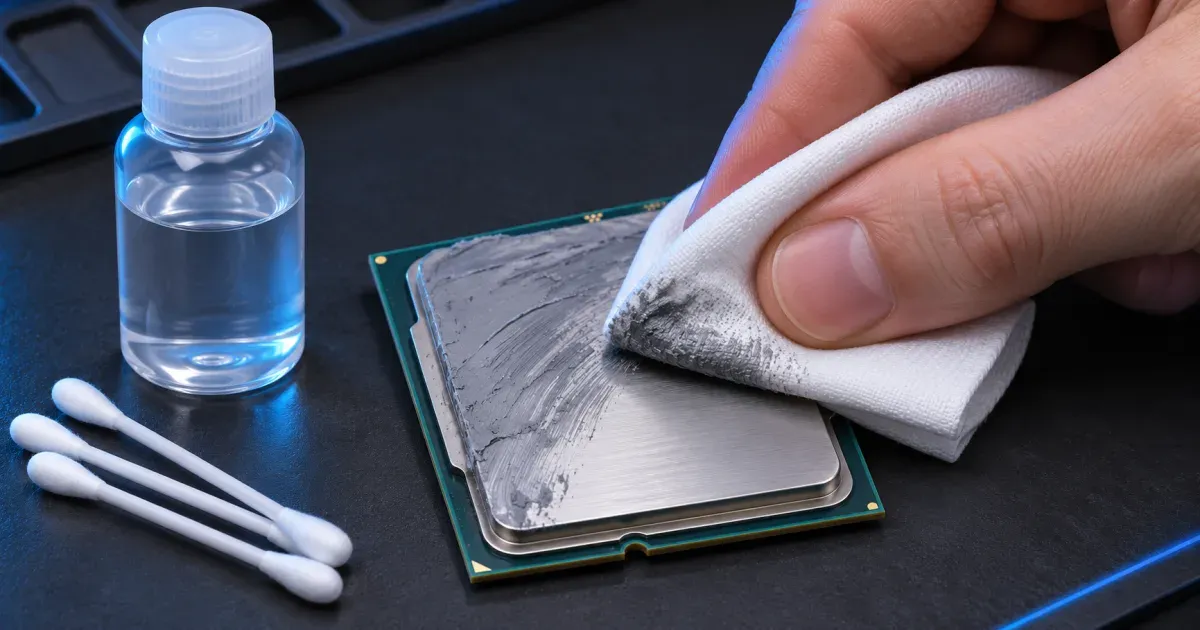

Here is how to clean thermal paste off CPU surfaces the safe way: wipe away as much of the old paste as you can with a dry, lint-free cloth or coffee filter, then remove the rest with isopropyl alcohol (90% or higher is ideal) and let the CPU dry completely before applying new paste. The whole job takes about ten minutes, and the same method works for the bottom of your cooler.
The two things that cause most problems are rushing the cooler removal, which can pull an AMD CPU out of its socket, and letting paste or liquid get into the pins. This guide covers both, plus what to use if you don’t have isopropyl alcohol and how to deal with paste in the socket or on the pins.
Table of Contents
What You’ll Need to Clean Thermal Paste Off a CPU
- Isopropyl alcohol (IPA): 90% or higher is best. 70% works too, with a few precautions (see below).
- Lint-free wipes: coffee filters, microfiber cloths or lint-free lens wipes. Avoid paper towels and tissues, which leave fibers behind.
- Cotton swabs: for edges and the small gaps around the heat spreader.
- A plastic card or spudger (optional): to lift thick, dried paste without scratching.
- New thermal paste: you’ll need to reapply after cleaning. See our best thermal paste for CPU guide if you need to pick one.
Dedicated cleaners such as two-step thermal paste removers also work well, but they aren’t required. Isopropyl alcohol does the job for almost every paste.
Step-by-Step: How to Clean Thermal Paste Off a CPU and Cooler
1. Warm up the PC, then power it down
If the PC has been off, run it for 5 to 10 minutes first. Warm paste is softer, which makes the cooler much easier to remove. Then shut down, switch off the power supply and unplug the PC.
2. Remove the cooler carefully
Unscrew the cooler in a cross pattern, a little at a time. Then twist the cooler gently from side to side before lifting it. Don’t pull straight up. On AMD AM4 systems especially, old paste can glue the CPU to the cooler so tightly that the CPU is pulled out of the socket while the lever is still closed. This can bend or break pins.
If the cooler won’t budge, warm the PC again and keep twisting gently. Patience is cheaper than a new motherboard.
3. Wipe off the bulk of the old paste
With the CPU still in the socket and the lever closed, wipe the heat spreader with a dry coffee filter or lint-free cloth. Wipe from the edges toward the center so paste isn’t pushed off the sides and into the socket. Do the same on the cooler’s base.
4. Clean the residue with isopropyl alcohol
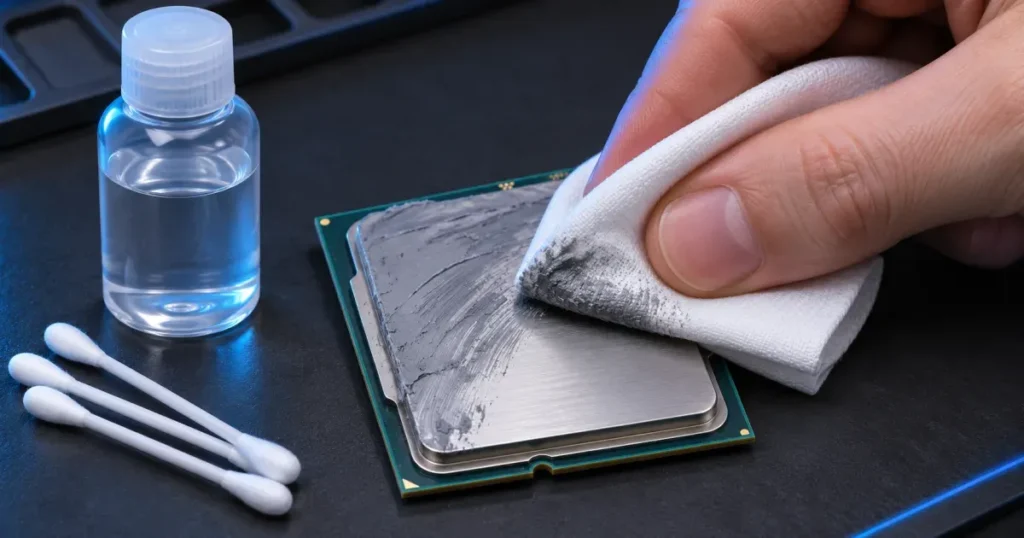
Dampen (don’t soak) a fresh wipe with alcohol and clean the heat spreader until it’s shiny. Use a cotton swab for the edges and the gaps between the heat spreader and the CPU’s board. Never pour or spray alcohol directly onto the CPU or motherboard.
5. Clean the cooler base the same way
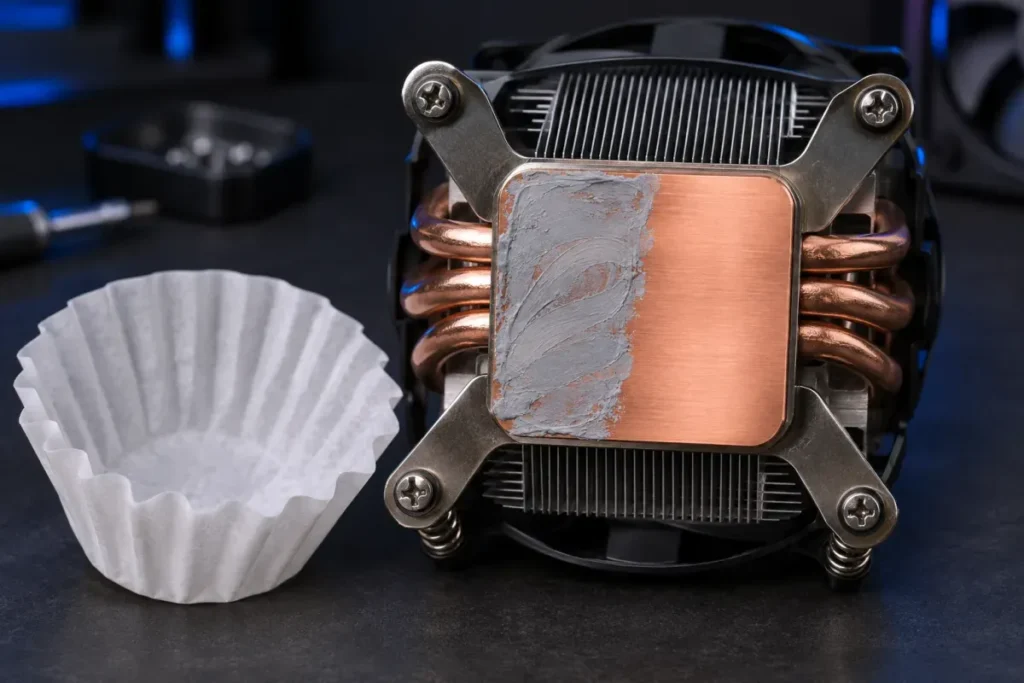
Clean the cooler’s contact plate until no paste is left. For coolers with exposed heat pipes, use a swab to get paste out of the grooves between the pipes.
6. Let everything dry
High-percentage alcohol evaporates in seconds. With 70% alcohol, wait a few minutes longer, because it contains more water. The surfaces should look completely dry with no streaks.
7. Apply new paste and reinstall
Apply fresh paste and mount the cooler again, tightening the screws in a cross pattern. For the right amount and pattern for your CPU, see our guide on how much thermal paste to apply.
Is 70% Isopropyl Alcohol Enough?
Yes, for most cleaning jobs. 70% isopropyl alcohol removes thermal paste fine; the main difference is that it contains about 30% water, so it evaporates more slowly. Higher concentrations (90% or 99%) dry faster and leave less risk of moisture, which is why most PC component makers recommend them. Corsair’s thermal paste removal guide, for example, calls for isopropyl alcohol of 90% or higher.
| Concentration | Works? | Drying time | Notes |
|---|---|---|---|
| 99% IPA | Yes, best | Seconds | Ideal for CPUs, coolers and sockets |
| 90–91% IPA | Yes | Very fast | Easy to find in pharmacies; a great all-round choice |
| 70% IPA (rubbing alcohol) | Yes, with care | A few minutes | Use sparingly, keep it off the socket, and let it dry fully |
If you use 70%, wipe off as much paste as possible dry first, so you need less liquid. Never use it on a part that’s still powered.
Alternatives to Isopropyl Alcohol: What’s Safe and What to Avoid
If you don’t have isopropyl alcohol, you have a few options:
- Dedicated thermal paste removers: safe and effective, designed for exactly this job.
- Alcohol-based electronics cleaning wipes: pre-moistened IPA wipes work well for small jobs.
- A dry wipe only: fine if you’re about to apply new paste and just need the old layer off. Get the surface as clean as you can.
Avoid these:
- Household glass and multi-surface cleaners: they can leave residue and contain water and other additives.
- Acetone and nail polish remover: they remove paste, but they can damage plastic parts and markings, and some removers contain oils and fragrance.
- WD-40 and other oily sprays: they leave an oily film that hurts heat transfer.
- Water: it doesn’t dissolve most pastes and adds unnecessary risk.
- Abrasives: sandpaper, steel wool or metal scrapers can scratch the heat spreader.
How to Clean Thermal Paste Off CPU Pins and Socket
Paste on the pins or in the socket needs a gentler approach, and the right method depends on your platform:
- AMD AM4 (pins on the CPU): remove the CPU, hold it by the edges, and gently brush the pins with a soft toothbrush or small brush dampened with 99% IPA. Brush in the direction of the pin rows, never across them.
- Intel LGA and AMD AM5 (pins in the motherboard socket): don’t brush the socket. Dab paste away very lightly with a lint-free swab and 99% IPA, and use a gentle puff of air to help it dry.
Most thermal pastes are non-conductive, so a small smear near the socket is usually harmless, but it should still be removed carefully. For a full walkthrough with pictures, see our guide on thermal paste in the CPU socket.
Removing Liquid Metal from a CPU
Liquid metal is different from normal paste because it is electrically conductive. Any stray droplet can short components, so work slowly:
- Lift the bulk of it with a cotton swab or lint-free wipe. Gently scoop rather than smear.
- Clean the remaining film with isopropyl alcohol or a dedicated liquid metal cleaner.
- Check around the heat spreader edges and nearby components with a flashlight for any missed droplets.
- Expect some staining on copper surfaces. This is normal and doesn’t usually affect performance.
If you’re replacing liquid metal with a standard paste, a non-conductive paste is the safer choice for most builds.
When and Why to Clean Old Thermal Paste
Always clean off the old paste whenever you remove the cooler. Reusing old paste can trap air bubbles and leave an uneven layer, which raises temperatures. Typical reasons to clean and repaste:
- You removed or replaced the CPU cooler.
- You bought a used CPU or cooler. Old paste on pre-owned parts should always be replaced; see our guide on where to buy used CPU for what to check when a used chip arrives.
- Temperatures have been creeping up for months, even after dusting.
- The PC is several years old and has never been repasted.
If your CPU is still hot after repasting, check that the cooler is tightened evenly, that you removed any protective film from the cooler base, and that the fan is plugged into the CPU fan header.
Frequently Asked Questions
Can I use 70% isopropyl alcohol to clean a CPU?
Yes. 70% isopropyl alcohol removes thermal paste, but it contains more water and dries more slowly. Use it sparingly, keep it away from the socket, and let everything dry completely before reinstalling the cooler.
What can I use to get thermal paste off a CPU without alcohol?
A dedicated thermal paste remover or pre-moistened electronics cleaning wipes are the best alternatives. In a pinch, a dry coffee filter or lint-free cloth removes most of the paste. Avoid acetone, household cleaners and oily sprays.
How do I clean thermal paste off the CPU pins?
For AMD CPUs with pins, gently brush along the pin rows with a soft brush and 99% isopropyl alcohol. For sockets with pins on the motherboard, dab very lightly with a lint-free swab instead of brushing.
Do I need to clean off old thermal paste before reapplying?
Yes. Applying new paste over old paste leads to an uneven layer and air pockets. Always clean both the CPU and cooler before applying fresh paste.
What do I do if the CPU is stuck to the cooler?
Warm the PC up for 5 to 10 minutes, then gently twist the cooler side to side before lifting. Don’t pull straight up. If the CPU still comes away with the cooler, carefully twist it free and inspect the pins before reinstalling.
Can I use paper towels to clean thermal paste?
It’s better not to. Paper towels and tissues leave fibers that can get trapped under the new paste. Coffee filters and microfiber cloths are cheap, lint-free alternatives.
How often should I change thermal paste?
Every few years for most desktops, or whenever you remove the cooler. Repaste sooner if temperatures rise noticeably over time. See our thermal paste guide for how long different types typically last.